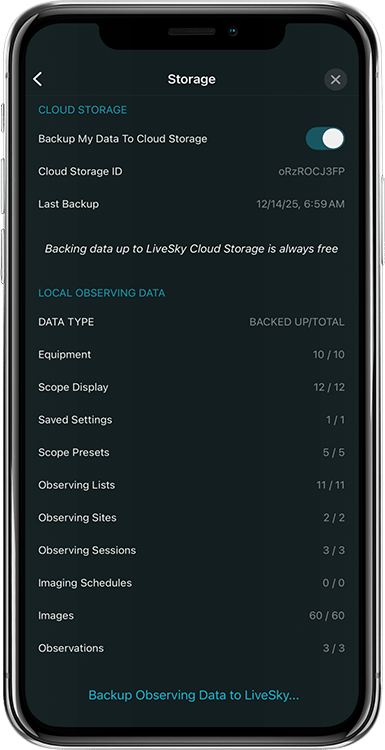
Login to SkySafari 8 (Settings - LiveSky) with your existing SkySafari 7 LiveSky.com account to automatically import and sync your data.Note: If you never created a LiveSky account in SkySafari 7, the app may have assigned you an automatic, anonymous account for backup and sync. In that case, open SkySafari 7, go to Settings → Account, and sign in (or sign up) so the app links your data to a real LiveSky account. Then log in with that same account in SkySafari 8.Important: Please note that your sky chart settings are not synced via LiveSky. However, you can save your current sky chart settings in SkySafari 7 by creating a Saved Setting file under “Settings - Saved Settings - Create Settings”. Then go back to SkySafari 8. If you are logged in with the same LiveSky account, the file your just created and saved in SkySafari 7 will be listed in under “Settings - Saved Settings"". Tap the file and select “Apply Settings”.You will have to manually import custom horizon images. To do this, open the Files app on iOS and place your custom horizon image under the root of the “SkySafari [app name]” folder.