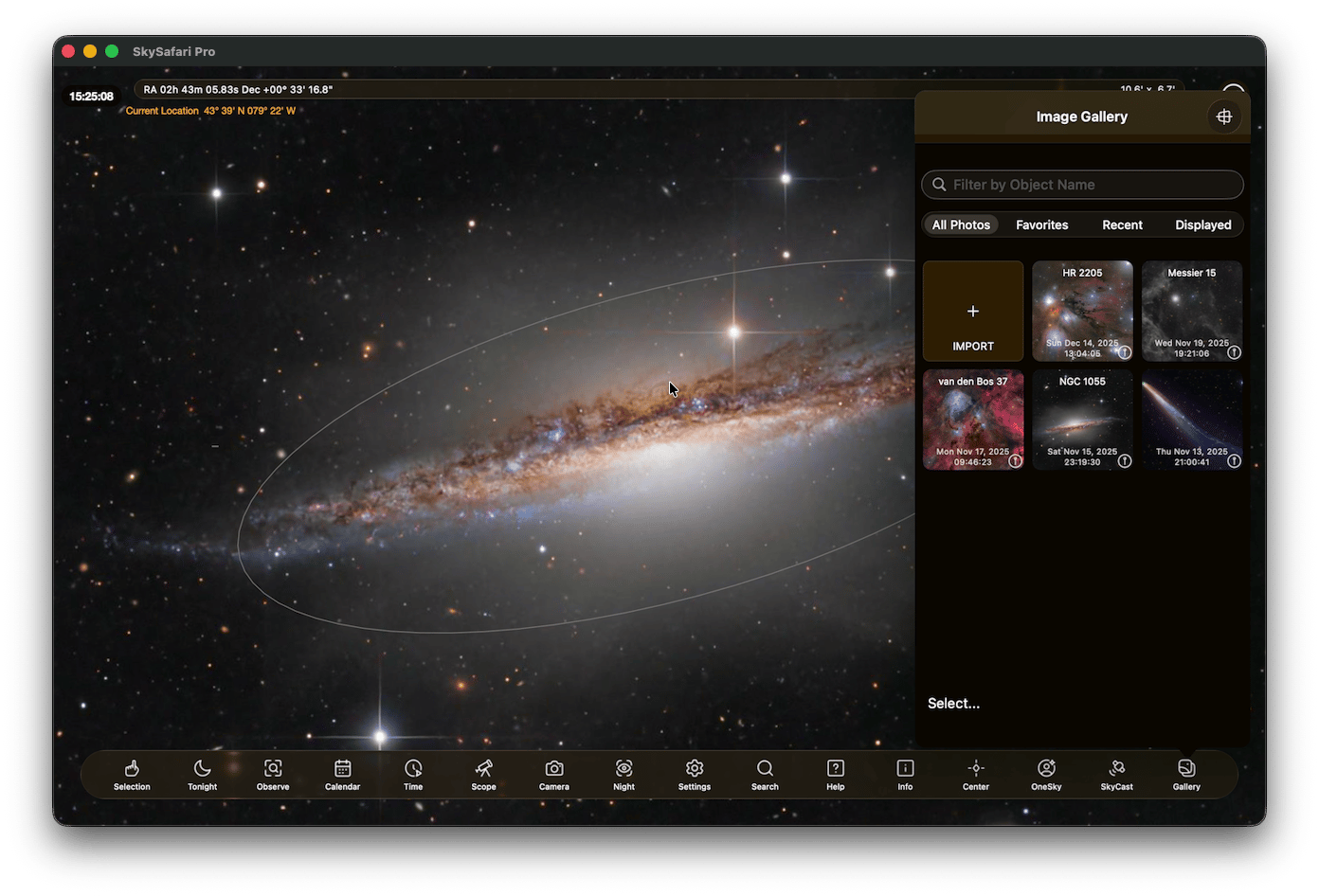
Image Gallery HelpYou can import images into SkySafari Pro from a variety of sources. In addition, you can plate-solve most astronomical images and place them correctly sized and oriented in the sky chart.
Note: By default, SkySafari can plate-solve images with a field of view up to about 2°. The extra reference star data is optional, but highly recommended to expand the range of image fields of view SkySafari can solve.Download each database by tapping Menu in the Toolbar and selecting Settings → On-Demand Data.Plate-Solve 1° Images: For images with a field of view of 1° or larger.
Plate-Solve 0.25–1° Images: For images with a field of view between 0.25° and 1°.
Importing ImagesTap Observe in the Toolbar and select Image Gallery. Then tap Import to add an image.AstroBin — Import an image from AstroBin using its image ID (hash). You can paste an image URL and SkySafari will automatically extract the ID. Then select Import From AstroBin. Most AstroBin images are already plate-solved; select Import into SkySafari to add it to your gallery and view it in the sky chart.Photo Library — Import an image from your device’s photo library. After selecting an image, tap Import This Image. We recommend associating a target with the image and plate-solving it if you want it embedded in the sky chart.Remote URL — Import an image from a remote URL.Local File — Import an image from your device’s file system.
When you open the gallery, four sections appear at the top:All Photos — Displays all images in your gallery, sorted in chronological order.Favorites — Displays only the images you’ve marked as favorites.Recent — Displays only the images you’ve added recently.Displayed — Displays only images that have been plate-solved and embedded in the sky chart.Use the Search bar beneath these sections to find images by object name.
Tap any image in the gallery to view it. Use a two-finger pinch gesture to zoom in and out.Display — For plate-solved images, toggles the image’s visibility in the sky chart.Favorite — Marks the image as a Favorite for easy access.Share — Shares the image with others or on social media.Delete — Permanently removes the image from the gallery.Edit — Allows basic manual post-processing adjustments.Solve — Initiates a plate-solve request for the image.Info — Provides additional information about the image, including the option to show it in the sky chart.
When you import an image into the Image Gallery for the first time, SkySafari gives you the option to plate-solve it locally on your device. If you choose not to solve it at that moment, you can do it later by opening the image in the gallery and tapping the Solve icon in the bottom toolbar.You can monitor plate-solve progress by returning to the main Image Gallery and tapping the plate-solve status icon in the top-right corner. The Image Plate Solving view shows all recent plate-solve attempts and their status (success or failure). You can also Cancel an active plate-solve from this screen.