Scope Presets HelpIn order to communicate with your telescope, you will need either:ASCOM Alpaca - A server adhering to the ASCOM Alpaca restful API, that manages your telescope.INDI - A server adhering to the INDI XML-based protocol that manages your telescope.SkyFi - a Wi-Fi adapter that relays wireless communication from your mobile device to the serial port on your telescope. Our original SkyFi 2 used Ad Hoc networking which most Android devices do not support. All iOS devices support Ad Hoc Wi-Fi, and therefore can use the SkyFi 2. Our latest SkyFi 3 creates a standard Wi-Fi hotspot that will work with all devices.A bluetooth serial adapter, which relays communication from SkySafari through your Android’s bluetooth radio hardware to your telescope’s serial port. Does not work with iOS devices.A network enabled scope or controller.
By default, SkySafari comes with a single telescope preset called “Demo”, which represents a simulated telescope. To add additional presets, tap the Add Preset button at the bottom of the Scope Presets view. Follow the setup sequence described below to configure the telescope connection.To select an active preset to use to connect to a scope, simply tap on a preset in the list and accept it as the new active preset. For SynScanLink connections, please make sure you have the SynScan or SynScan Pro app installed to communicate with the SkyWatcher scope.To delete a preset or edit an existing one, tap the Edit in the top right of the view and then tap the delete icon to remove a preset or the disclosure icon on the right to edit it.
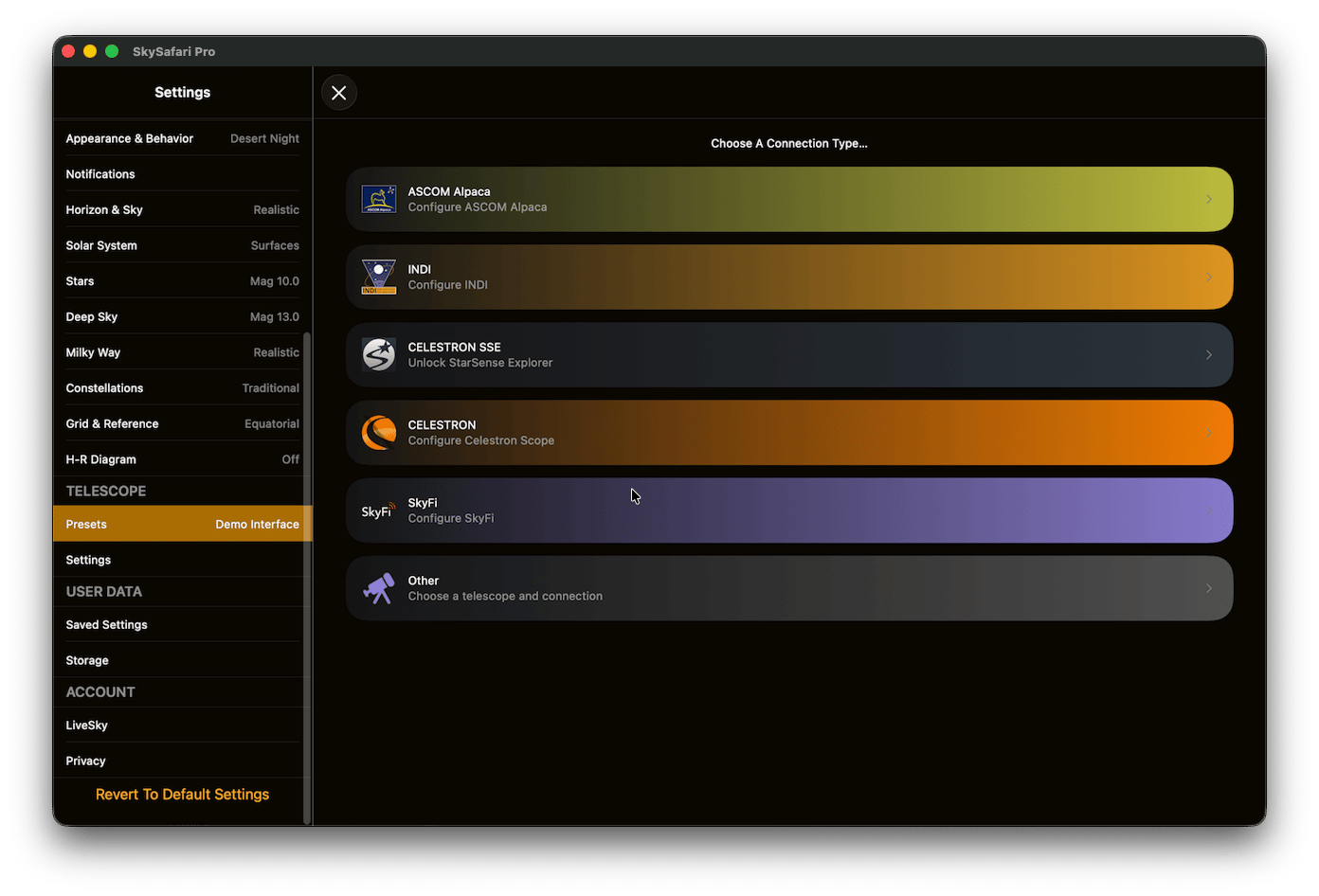
ASCOM Alpaca - Tap this button to connect to your scope through an ASCOM Alpaca server.INDI - Tap this button to connect to your scope through an INDI server.SkyFi - Tap this button to connect to your scope through a SkyFi adapter.Other - Tap this button to connect to your scope through a bluetooth serial adapter, Celestron WiFi, SynScanLink, or a network enabled controller.
Note: This step is not necessary and is skipped for ASCOM Alpaca and INDI connections.Once you have selected the correct Mount Type and Scope Type, tap the Next button in the top right corner to continue.Mount Type - selects your telescope’s type of mounting:Equatorial Push-To - a non-motorized mount whose right ascension axis is pointed at the celestial pole. The mount must be manually turned around this axis to follow the diurnal motion of the sky.Equatorial GoTo (Fork) - a motorized equatorial mount that automatically follows the diurnal motion of, and can automatically slew to, targets in any part of the sky. Has one or two fork arms that suspend the telescope between them. The Meade LX-200 and Celestron NexStar (when used with an equatorial wedge) are examples.Equatorial GoTo (German) - a motorized, polar-aligned mount that requires reversing the telescope tube to the east or west side of the mount when the telescope passes through the meridian. Examples include the Losmandy and Takahashi mounts.Alt-Az. Push-To on Equ. Platform - a non-motorized mount that must be manually pushed to targets in different parts of the sky. However, it sits on a motorized platform that is aligned with the Earth’s polar axis, so the mount follows the diurnal motion of the sky when it is not being pushed.Alt-Az. Push-To - a non-motorized alt-azimuth platform with fork arms that suspend the telescope between them. It is moved manually by pushing the telescope tube. It sits flat on the ground, so its “up-down” and “left-right” axes of motion align to the local horizon and zenith. This includes most Dobsonian telescopes.Alt-Az. GoTo - a motorized alt-azimuth platform with fork arms that suspend the telescope between them, and can slew to any set of coordinates in the sky on command. Includes the Meade LX-200 and Celestron NexStar when used in the alt-azimuth configuration.Scope Type - selects the type of telescope you want to control. SkySafari can control any of the telescopes in the list. SkySafari supports many encoder systems that can read out the telescope position but not actually move the telescope. The Celestron AstroMaster and JMI NGC-MAX are examples of such encoder systems.
Note: If you are connecting to your telescope through SynScanLink, or you are running SkySafari on Android and have picked a non-network capable telescope, this step is not necessary and will be skipped.
Select Auto-Detect (for Alpaca Only) then tap Scan Network For Devices to list available telescopes.Or select Manual Configuration and enter the IP Address and Port Number on which the server is hosted. Then tap Check IP and Port For Devices to list available telescopesAfter telescopes have been discovered and are listed at the top of the view, select the telescope with which you want to connect and tap the Next button in the top right corner.
Select Auto-Detect, enter the SkyFi name, then tap Scan Network For Devices to list available SkyFi adapters.Or select Manual Configuration and enter the IP Address and Port Number on which the SkyFi adapter is available. Then tap Check IP and Port For Devices to verify the connection.SkyFi Settings Web Page - If you have a SkyFi wireless adapter, this item displays its settings/configuration web page. You must be connected to SkyFi’s wireless network in order to see this web page.After a SkyFi adapter has been discovered, tap SkyFi Settings Web Page to display its settings/configuration web page.Once a SkyFi adapter has been discovered and configured, tap the Next button in the top right corner.
You will see choices for Setup and Control and for Communication. The Setup and Control screen will have options that vary depending upon the exact Celestron WiFi scope you are connected to. The Communication screen will allow you to change whether you connect to the WiFi directly or by using access point mode where the WiFi scope has joined your local network. Once setup is complete, tap the Next button in the top right corner.
If you are using SkySafari for Android, select Connect via Bluetooth to communicate with your telescope using a bluetooth serial adapter. The adapter must be turned on, physically connected to your telescope’s serial port, and paired with your Android device. Otherwise select Connect via Wi-Fi to communicate with your telescope using a network connection.To use a network connection, enter the IP Address and Port Number on which the telescope is available. Then tap Check IP and Port to verify the connection.
Preset Name - Allows you to enter a custom name for your scope preset.Set Time and Location - If turned on, SkySafari will send the time and location from your mobile device to the telescope when establishing a connection. This will overwrite your telescope’s previously-set time and location. For some telescopes, this may invalidate your alignment. For older Meade LX-200 telescopes, this may also cause a delay of up to 15 seconds when connecting.Note: This option is disabled with Celestron WiFi scopes. The time and location is always sent in this case. For SynScanLink, this option is also disabled as time and location information is managed by the SynScan app.Readout Rate - The readout rate is how often SkySafari requests the telescope’s position from the mount. If you set this rate to “4 per second”, then SkySafari will request the telescope’s position (and update it on screen) four times every second.If the telescope communication drops often, the rate of position requests may be too high for the telescope to respond properly. Setting a lower rate of 1 or 2 readouts per second may improve reliability. The best readout rate may require some trial and error to find. A lower readout rate will update the telescope’s position in the sky chart less frequently, and may make SkySafari’s telescope controls feel sluggish.Timeout Seconds - The timeout is how long SkySafari will wait for a response from the mount. 3.0 seconds is a reasonable wait time, but older scopes may work better with longer timeouts.If your telescope mount has encoders which provide a digital readout of the scope’s position, additional text fields will appear here. These let you specify the encoder resolution.RA/Azm - The number of steps per revolution for the encoder attached to the telescope’s Right Ascension axis (or Azimuth axis, if you have an alt-azimuth mount).Dec/Alt - The number of steps per revolution for the encoder attached to the telescope’s Declination axis (or Altitude axis, if you have an alt-azimuth mount).Get Automatically - If turned on, SkySafari will attempt to read these values from your encoders when it connects to the telescope controller. If turned off, you can enter the encoder steps per revolution manually; then SkySafari will send the values you entered to the encoders when connecting to the telescope. You can do this if (for example) your mount is using gears or pulleys to increase the effective encoder resolution.Depending how your encoders are installed, their position readouts may increase when they are turned clockwise, or increase when they are turned counterclockwise. If the encoder position readouts increase when they are turned counterclockwise, enter a negative value for the number of steps per revolution. You may need to determine the correct + or - sign by trial-and-error. If you push your telescope left (or up), but the telescope field-of-view indicator on the sky char moves right (or down), the sign is probably wrong.