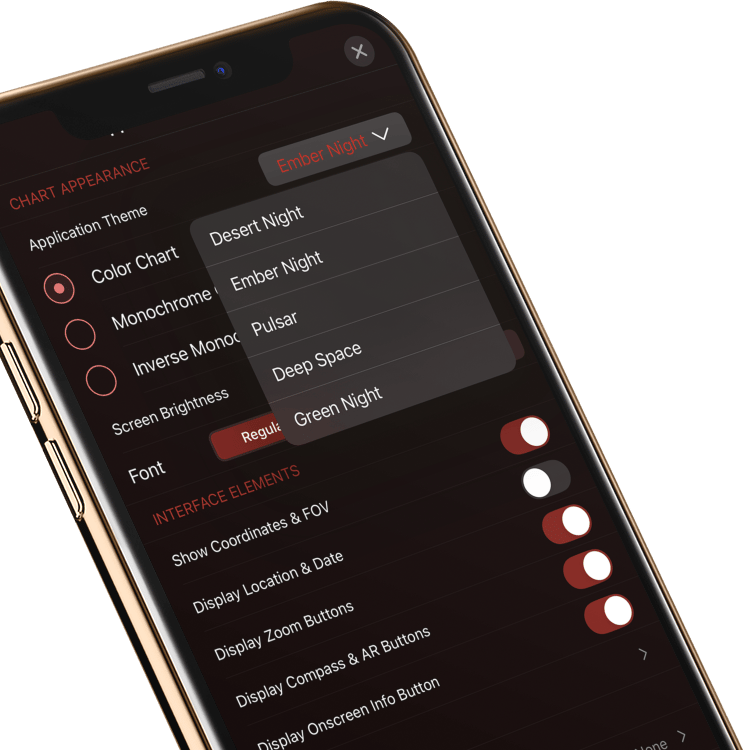
These options let you control the appearance of your sky charts.Application Theme: Select from five different color themes to customize your experience.Color Chart: Displays stars, planets, and other objects in the sky chart using full color.Monochrome Chart: Displays stars, planets, and other objects in the sky chart using grayscale, with light objects on a dark background.Inverse Monochrome Chart: Displays stars, planets, and other objects in the sky chart using grayscale, with dark objects on a light background. This makes the sky chart appear as a photographic negative, and may make it easier to see for those with poor vision.Screen Brightness: Sets the brightness level of the screen. Turning this down, especially when using the Night Vision theme, may help preserve your visual dark adaptation, as well as save battery life.When using the Night Vision theme, the sky chart is always drawn with red objects on a dark background (or dark objects on a red background, if you’re using Inverse Monochrome sky charts). Again, this is to preserve your night vision - red light affects your dark adaptation much less than white light.Font: Sets the font size for text displayed in the sky chart.Use English: Sets the app language to english, if your system language is different.
These options let you display additional information or control elements in the sky chart.Show Coordinates & FOV: When turned on, the chart center coordinates and field of view are always displayed at the top of the sky chart. You can turn them off if you want to see the sky chart without any coordinates superimposed.Display Location & Date: Displays your current location and date underneath the status bar.Display Zoom Buttons: Toggles on a set of Zoom buttons (+ / -) in the sky chart.Display Compass & AR Buttons: (iOS only) Toggles the Compass/AR button on the upper right of the sky chart.Display Onscreen Info Button: Displays an Info button next to a selected object label. Tap the Info button to open Object Info. When this option is switched off, the Info button is removed and automatically added to the ‘circular’ selection menu that is accessed by double-taping or long-pressing an object in the sky chart.Configure Toolbar: Lets you show/hide and rearrange the items on the main sky chart toolbar. Tap this item to show the list of toolbar items. On iOS, you can have 5 buttons visible on your phone in portrait mode, or 10 buttons visible in landscape and in tablet devices. To change the ordering of items on iOS, drag the “grip” on the right side of an item in the list to move it. On Android, tap-hold and drag the item to move it. Please Note: this feature is only available in SkySafari Plus and Pro.
Ambient Sound: Controls the use of ambient sound in the app. Tapping the entry will display a sound picker where you can choose from several ambient sounds or none at all. You can add you own custom ambient sounds to the list. On iOS, place them in the Documents directory using iTunes file sharing. On Android, add them to the app’s SkySafari directory on the SD card.Sound Effects: Controls the use of sound in the app. When turned on, SkySafari plays sounds in response to events such as selecting a new object, connecting to a telescope, and so on. When turned off, SkySafari does not play sounds.Use Voice Control: Enables the use of simple voice commands in the app. When turned on, a microphone icon appears on the bottom left of the sky chart. Tap the microphone icon to issue your voice command. It will listen for up to 15 seconds after it has last tried to process a command. Please Note: this feature is only available in the iOS versions of SkySafari.There are three types of commands accessible via voice control.
You can perform the equivalent of pressing toolbar buttons by saying the name of the button. This also applies for the buttons in the Scope Control panel (Connect, GoTo, Align, Lock). In addition, to change the slew rate in the Scope Control panel you can say “Rate x” where x is 1,2,3, or 4. Saying “toolbar” toggles the toolbar visibility.
Although you can show the time flow panel by saying “Time”, it might feel more natural to say “Show Time”, “Hide Time” or “Toggle Time”. This also works for Scope.You can also do commands like “Show Settings” rather than “Settings”. Show should work for most other screens or panels that can be shown from the main chart view.
There are a series of commands that work on sky objects. These are:“center on ”
“center ”
“find information for ”
“find info for ”
“find ”
“select ”
“go to ”
“orbit ”
“search for ”
“search ”
“show information for ”
“show info for ”
“show ”
Just follow the command with the name of the object.Note: Recognizing the name of the object is somewhat problematic and we are still trying to fine tune this. For example, sometimes saying “Messier 15” works better than “M 15”. Sometimes you need to try speaking a bit slower and more distinctly. And generally saying a star name will not work. Apple’s speech recognition dictionary doesn’t have all the star names in it. For these reasons, please be aware that we consider this feature “in development”.Other Commands:“zoom in”
“zoom out”
“stop” (stops a GoTo)
“north”, “south”, “east”, “west” changes the direction the sky chart is facing.
“done” (will dismiss most screens with a “X” button. Also will dismiss the Selection, Observe, and Tonight popups). This will also stop voice listening if there are no panels to dismiss.
“stop recording” (stops voice listening).
Tilt to Use Compass: When turned on, you can tilt your iPhone, iPad, or Android device upward to activate the compass. Once activated this way, touch the screen anywhere to turn the compass off. Turn “Tilt to Use” off if you find that you’re accidentally activating the compass too often, or if you prefer to activate it from the main toolbar.Please Note: the compass will be turned off if you connect to a telescope, or lock on the telescope’s position in the sky chart. The sky chart cannot be centered on the telescope’s position, and centered on the coordinates reported by the compass, at the same time. See the Scope Control view Help page for more information.If your device does not have a compass, this option is disabled. When the compass has been activated, the coordinate system will change to Horizon coordinates (see above).Prevent Sleep: When turned ON, this prevents the device from sleeping while SkySafari is active. This allows a continuous connection to a telescope. Please Note: this feature is only available in the SkySafari Plus and Pro.Redden Keyboard in Night Vision: When turned ON, SkySafari reddens the keyboard when displayed in Night Vision mode. Normally this is desired but you may want to turn this OFF when using a custom keyboard that is already reddened or when using a red film over the screen.Allow Auto Rotation: When turned on, the main sky chart and other views automatically rotate as you turn your device from portrait to landscape mode. When turned off, all views stay in portrait mode, regardless of how you are holding your device.On the iPad, this setting overrides the hardware rotation lock. In other words, if the auto rotation setting is turned off, all of SkySafari’s views will remain in portrait mode even if the iPad’s hardware rotation lock is disabled. You may want to have other iPad apps auto-rotate, but keep SkySafari in portrait orientation.