Scope Display HelpUse the scope display settings to customize the display of the telescope’s field of view in the sky chart. The Scope Display settings can be accessed by tapping the Observe button in the toolbar.Note: By default the field of view indicators only display on the sky chart when you connect to a computerized scope. To change this behavior so that field of view indicators draw on the sky chart without connecting to a scope, tap the Options icon ((looks like two sliders) on the top right of the screen and check the option named “Show Even if Not Connected to Telescope”.Any of the field of view indicators may be shown or hidden by touching its on/off switch.
Crosshairs: Lets you turn crosshairs on or off, which precisely show the field of view center, and indicate the directions of movement of the telescope mount axes.Telrad Circles: Shows the field-of-view indicators of a Telrad as red circles in the sky chart. These circles are 0.5°, 2°, and 4° across, always centered on the telescope’s field of view.
Here you will see the field of view indicators you’ve added. Tap the Create FOV button on the lower right of the screen to get started.From Equipment: Choose the telescope, eyepiece, finder scope, and/or camera(s) that you’re using. SkySafari will automatically compute the FOV of your equipment and display it in the sky chart when the telescope is connected.Please Note: if you choose binoculars or a finder scope, you cannot choose an eyepiece or camera. Binoculars and Finders have built-in eyepieces with fixed fields of view. You can use any eyepiece or any camera with any telescope, however.You can enter your equipment into SkySafari using the My Equipment settings which are accessed by tapping the Observe button in the toolbar. See the My Equipment Help for more information.Circular FOV: You can also enter a custom circular FOV (in degrees) if you don’t want to choose any equipment from the list.Rectangular FOV: Enter a custom rectangular FOV (in degrees).
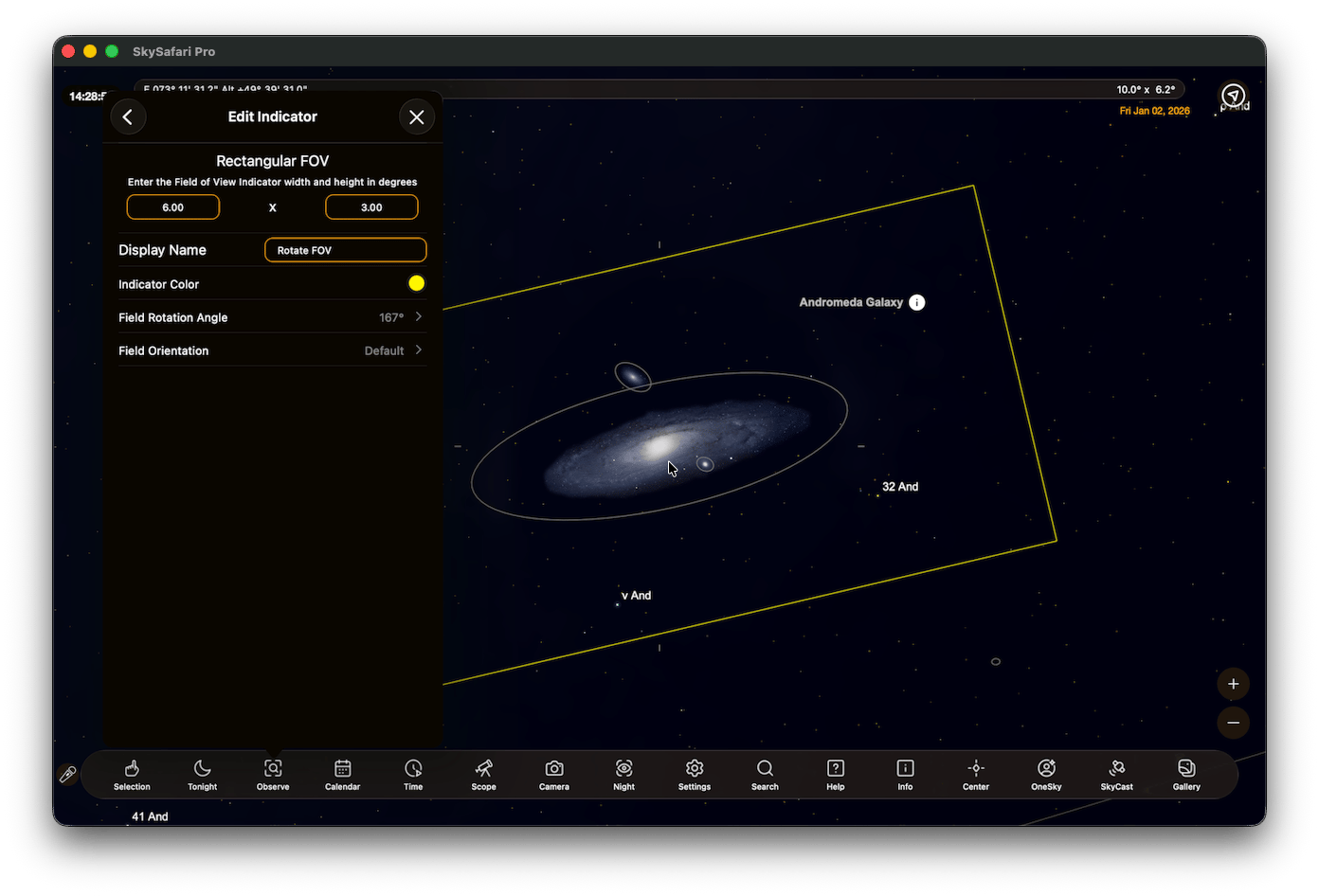
You can edit the color, field rotation angle, and orientation for individual FOV Indicators by tapping on the name of an FOV indicator in the Scope Display screen.Indicator FOV: Tap to edit the FOV indicator values. Radius in degrees for circular indicators, width x height in degrees for rectangular indicators or select a different equipment combination for equipment-based indicators.Display Name: Edit the display name of an FOV indicator.Indicator Color: Lets you set the color of an FOV indicator. Tap the color button to bring up the color picker.Field Rotation Angle: Lets you set the scope field-of-view rotation angle of your non-circular FOV indicator. When zero, “up” in the scope’s field of view is north in the sky (for equatorial mounts) or “up” in the sky (for alt-azimuth mounts).Sky Chart Rotatable FOV: In addition to setting the rotation angle numerically, you can now adjust it directly on the sky chart. Double-tap a non-circular FOV indicator to reveal a rotation handle, allowing you to manually rotate the FOV to any desired orientation. Double-tap again to hide the handle and lock the FOV at the angle you’ve chosen. This provides a faster, more intuitive way to fine-tune the field rotation during observing or imaging sessions.Field Orientation: Allows you to set the orientation of your non-circular FOV indicator relative to Horizon Coordinates (Alt Az), Equatorial Coordinates, or the Default (takes on the orientation of the mount of your selected scope preset). For example, an Horizon (Alt Az) orientation will align your FOV indicator with the Zenith, while an Equatorial orientation will align your FOV Indicator with the North Celestial Pole (NCP.)
Tap the Options icon on the top right of the screen to access additional settings for your field of view indicators.Draw Labels: Shows names of the equipment combination that defines a particular field of view in the sky chart.Cardinal Directions: Shows cardinal direction (N/E/S/W) markers around the edges of the field of view indicator. These help you follow the cardinal celestial directions in a small telescopic field of view. As the Earth rotates from west to east, objects appear to travel through the eyepiece from east to west.Show Even if Not Connected to Telescope: Lets you display the field-of-view indicators even if SkySafari is not actually communicating with your telescope controller. In this case, the field of view indicators will always be displayed at the center of the sky chart. You may use this feature, for example, to “preview” how a star cluster may appear in a particular eyepiece or finder scope.