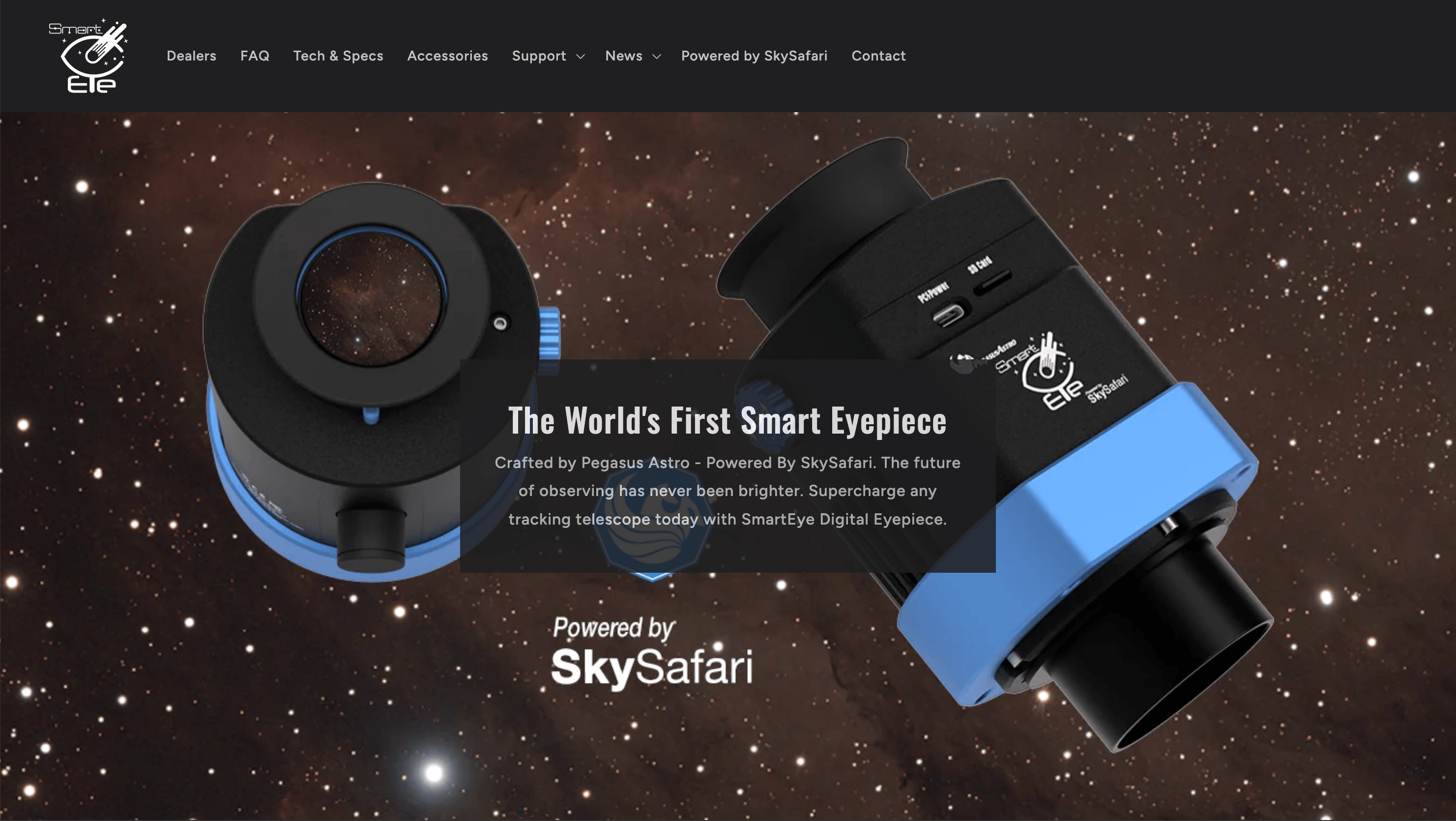
To communicate with your camera, your device must support one of the following:ASCOM Alpaca: The camera must be ASCOM Alpaca compatible. This includes devices such as the ZWO SeeStar.SmartEye: Pegasus Astro SmartEye devices are supported through our custom, built-in integration.
To add a preset, tap the Add Preset button at the bottom of the SmartEye & Camera Configuration view. Follow the setup sequence described below to configure the camera connection.To select an active preset to use to connect to a camera, simply tap on a preset in the list and accept it as the new active preset.To delete a preset or edit an existing one, tap the Edit button in the top right of the view and then tap the delete icon to remove a preset or the disclosure icon on the right to edit it.
SmartEye - Tap this button to connect to SmartEye.ASCOM Alpaca Camera - Tap this button to connect to your ASCOM Alpaca compatible camera.ZWO SeeStar Camera - Tap this button to connect to a ZWO SeeStar camera.
Select Auto-Detect then tap Scan Network For Devices to list available cameras.Or select Manual Configuration and enter the IP Address and Port Number on which the server is hosted. Then tap Check IP and Port For Devices to list available cameras.After cameras have been discovered and are listed at the top of the view, select the camera with which you want to connect and tap the Next button in the top right corner.
Preset Name - Allows you to enter a custom name for your camera preset.Timeout Seconds - The timeout is how long SkySafari will wait for a response from the camera. 5.0 seconds is a reasonable wait time, but some cameras may work better with different timeouts.Readout Rate - The readout rate is how often SkySafari requests data from the camera.
Depending on your specific ALPACA camera, the following options may be available:Description – The name/model of your camera as reported by the device.Driver Info – Any driver or firmware information provided by the camera.ALPACA Version – The Alpaca protocol version supported by the camera.Gain – Adjusts the camera’s electronic amplification. Higher gain brightens the image but increases noise.Exposure Time – Sets how long the sensor collects light for each frame.Readout Mode – Selects the camera’s readout configuration (e.g., normal, fast, etc, if supported.Sub-Exposure Duration(s) – For cameras that allow it, this sets the number of individual sub-exposures to be taken.Cooler – Enables or disables the camera’s cooling system, if present.Cooler Power – Shows the current power level being used by the cooling system.Sensor Temperature – The current temperature of the camera sensor.Set Temperature – The target temperature you want the camera’s cooler to maintain.