Social Stargazing HelpStargazing is often done on your own but looking up at the stars reminds us that we are all part of a larger interconnected universe. SkySafari brings social stargazing to mobile devices with two new features to help you connect with other like minded people.Note: An Internet connection is required to use these features.
OneSky connects you with other users around the world in real-time. This feature highlights objects in the sky chart being observed and displays the number of users observing the object. Astronomy can be a solitary endeavour, OneSky creates a sense of community by connecting users to each other through shared observation.
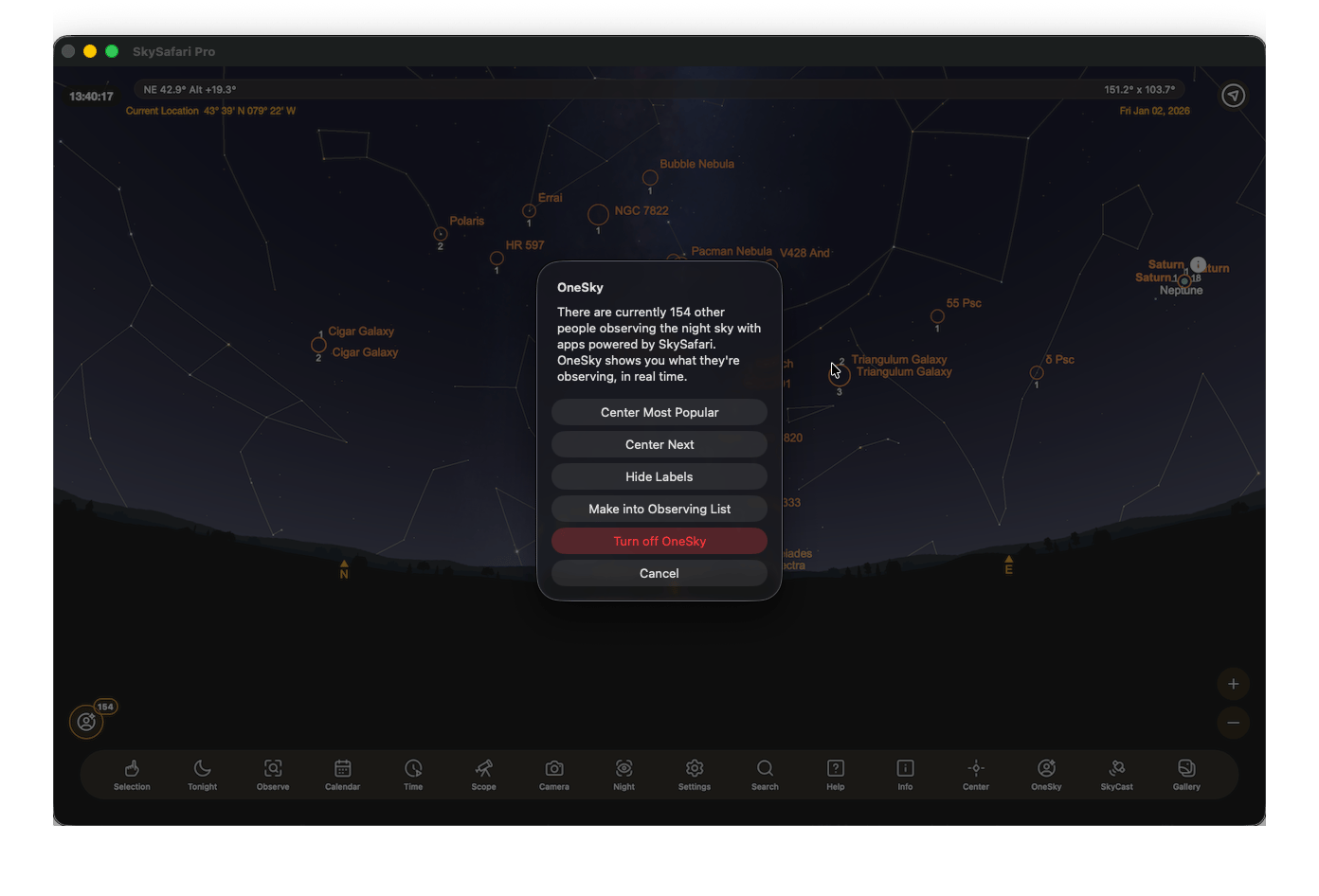
Tap Menu in the Toolbar and select OneSky. The Sky Chart will show highlighted circles around objects that are currently being observed by other SkySafari users in real-time. Objects with more than 1 observer will display the number of observers under the circle.For an object to be highlighted in OneSky, a user a) did a telescope goto on the object, b) selected the object in the sky chart in the current session, or c) is pointing at the object with the built in compass/gyros. In addition, your OneSky object selections are only included if it’s dark at your set location, with the exception of the Moon and Venus.Notice the OneSky icon on the lower left of your screen. The OneSky icon number counter displays the number of observers currently observing/selecting objects in SkySafari.
Tap the OneSky icon to bring up a popup menu with additional options.Center Most Popular: Centers the view on the object with most observers.
Center Next: Selects the next most popular object being observed.
Show/Hide Labels: Displays or hides labels for the highlighted objects.
Make Into Observing List: Creates a list of all the OneSky objects being observed. You can find the list in “Observing Lists” by tapping Observe in the Toolbar.
Turn off OneSky: Toggles off the OneSky feature.
PrivacyWe take your privacy seriously. All shared observing data is completely anonymous and statistical in nature. OneSky only records what you’re looking at (not where or who you are). If you would like even this anonymous data excluded from our OneSky statistics, you can select to “Exclude My Observing From OneSky” under Settings > Privacy.
SkyCast allows you to guide a friend or group around the night sky through their own copy of SkySafari. After initiating SkyCast, you can generate a link and conveniently share it with other SkySafari users via text message, apps or social media accounts.When your friend receives and clicks on the SkyCast link, they will be guided to the object you are currently observing with the aid of location arrows. SkyCast keeps track of how many people have joined your live skycasting session.
Tap Menu in the Toolbar and select SkyCast. In the popup that appears, select SkyCast to begin SkyCasting. The Share view on your device will appear, allowing you to share a link with people in your contacts or with other apps on your device.When your contact receives the link, they just need to tap on it and their copy of SkySafari will launch, showing them a view with arrows directing them to your selected object. When you select a new object, your contacts sky chart view will update to point to the new object.Notice the SkyCast icon on the lower left of your screen. The SkyCast icon number counter will update from 0 as your contacts join your SkyCast.Tap the SkyCast icon to bring up a popup menu with options to end a skycasting session or to send out the link again.Note: Take it to the next level and broadcast your own personal star show by sharing your SkyCast link alongside a FaceTime Link.
To follow a SkyCast you will need your own copy of SkySafari 7 installed on your device. When you receive a skycast invitation, simply click on the link and SkySafari will open automatically. Onscreen arrows point you to the object the SkyCaster has selected in their sky chart. As the SkyCaster selects different objects, the arrows will guide you to the new object.To stop following a skycast, tap the SkyCast icon on the lower left of your screen and select Stop Following.