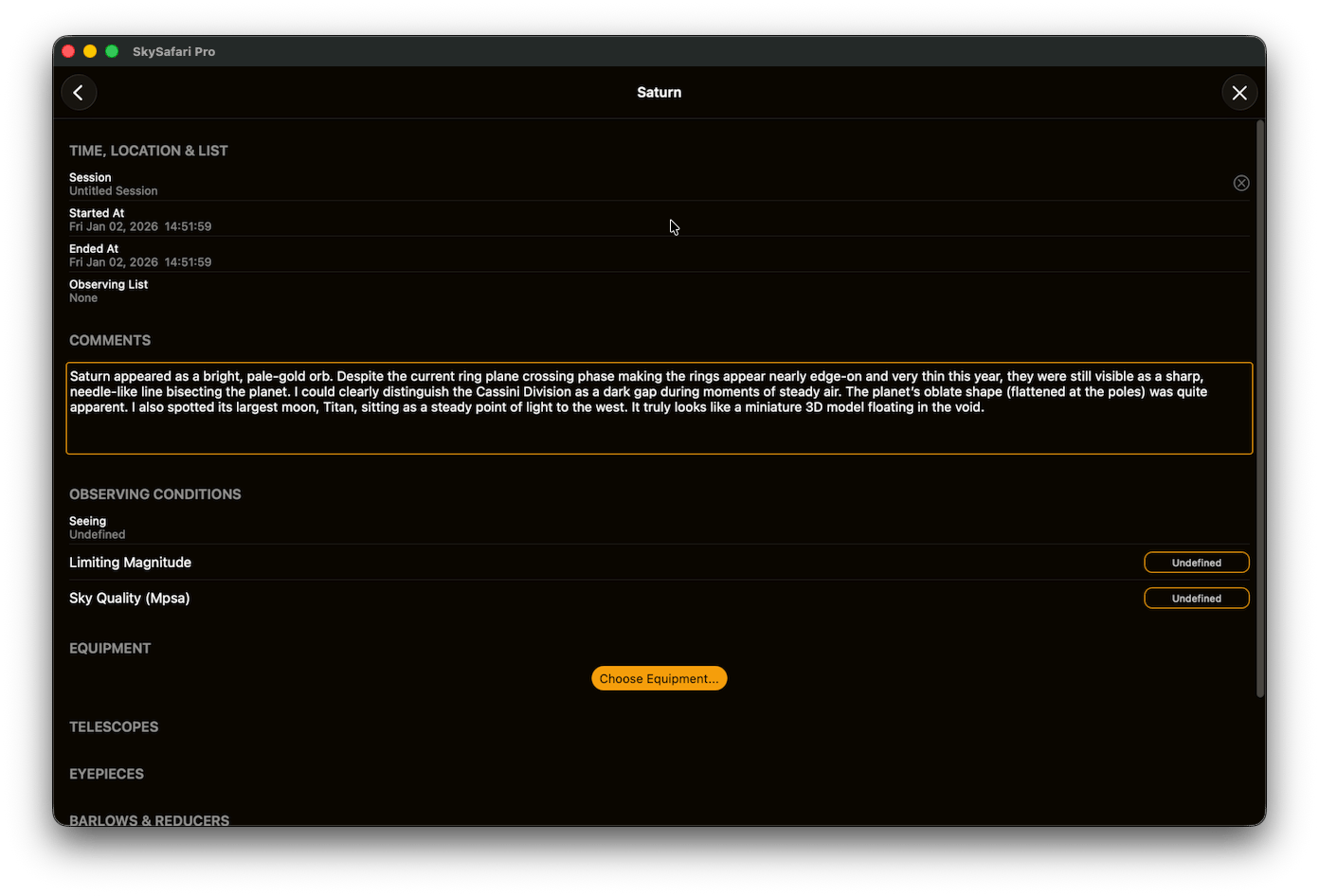
Observations HelpView and search all of your logged object observations. Observations can be viewed and created in the Observations view by tapping Observe on the Toolbar and selecting Observations.
To create a new observation, tap the Create Observation button at the bottom right of the Observations view. Select your object and tap “Create Observation” when you get to its Object Info view. The object will be added to your list of observations. Tap the object name in the list to edit the details of your observation.You can also create an observation by selecting an object in the sky chart. Tap & Hold the object to bring up the selection menu. From the menu tap the observation icon (looks like an eye). Alternatively, you can add an observation to an object by tapping the More icon at the bottom of the Object Info view for that object and selecting “Create New Observation”.
Tap the Filter & Sort icon on the upper right to access additional options. You can select to “Only Show Observations With a Session” and sort them by “Start Date”, “End Date” or “Proper Name”.
On iOS, swipe the observation name left to delete or tap the Edit button at the top of the screen. Then tap - (minus) icon on the left side of the item to delete it. Tap the End Edit button at the top of the screen when you’re finished.On Android, tap the Edit link at the top of the screen. A ‘trash can’ icon will appear at the top of the screen. Then tap the item you want to delete. Tap the trash can to delete it. When finished, tap the End Edit link at the top of the screen.