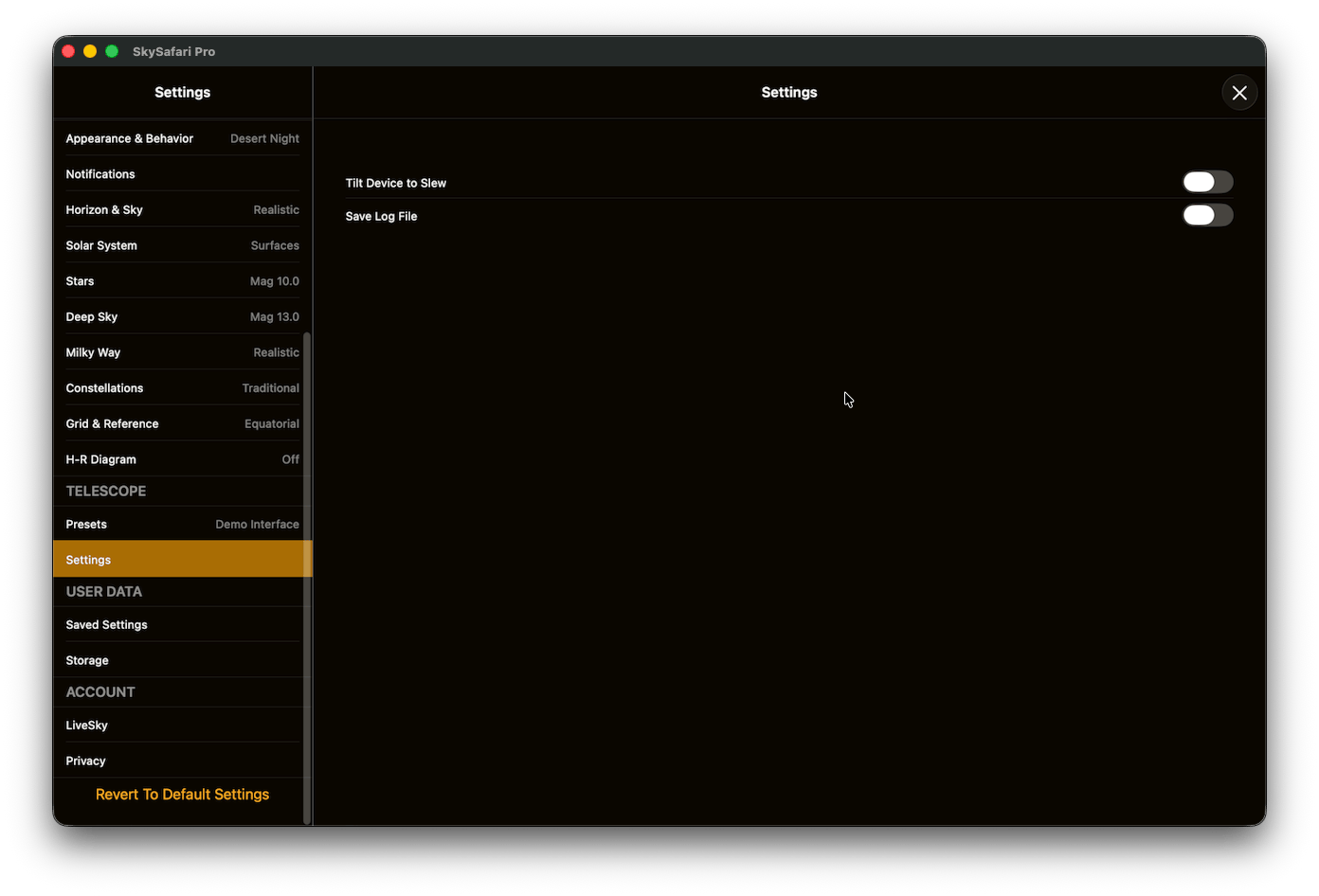
Scope Settings HelpTilt Device to Slew - when enabled, SkySafari uses the accelerometers in your device to gently translate the movements of your hands into slew commands for your telescope. The “tilt-to-slew” telescope control allows you to tilt and pan your device while keeping your eye on the eyepiece. To use this feature, enable “Tilt Device to Slew” in the Settings and connected to the scope. Then tap the small button on the right of the star chart. If the device is not already held level, it will prompt you to level the device before tilt-to-slew will engage. Once engaged, you just tilt the device to move in a particular direction. The amount of tilt does not control the slew rate. We found that was too hard to control. Instead use the rate control to adjust the rate.Save Log File - If turned on, SkySafari saves a log of its communication with the telescope on your mobile device. SkySafari creates a new log file every time you connect to the telescope. The log file records every command that SkySafari sends to the telescope, and every response from the telescope. The log file name contains the date and time you began the telescope session, for example:
This log file can be emailed to Simulation Curriculum for troubleshooting telescope communication problems. You can transfer the telescope communication log from your iOS or Android device using the Files app (iOS) or app file sharing (Android).iOS users - transfer the scope communication log to your computer with the Files app. Connect your iPhone or iPad, open the Files and look for a folder named ‘SkySafari [version name]’. Tap the scope log file and use the Share icon.Android users - After the scope is disconnected, the scope communication log is written to the Documents folder accessible through your Files app. Share the log file with yourself or email it directly to Simulation Curriculum from your device.