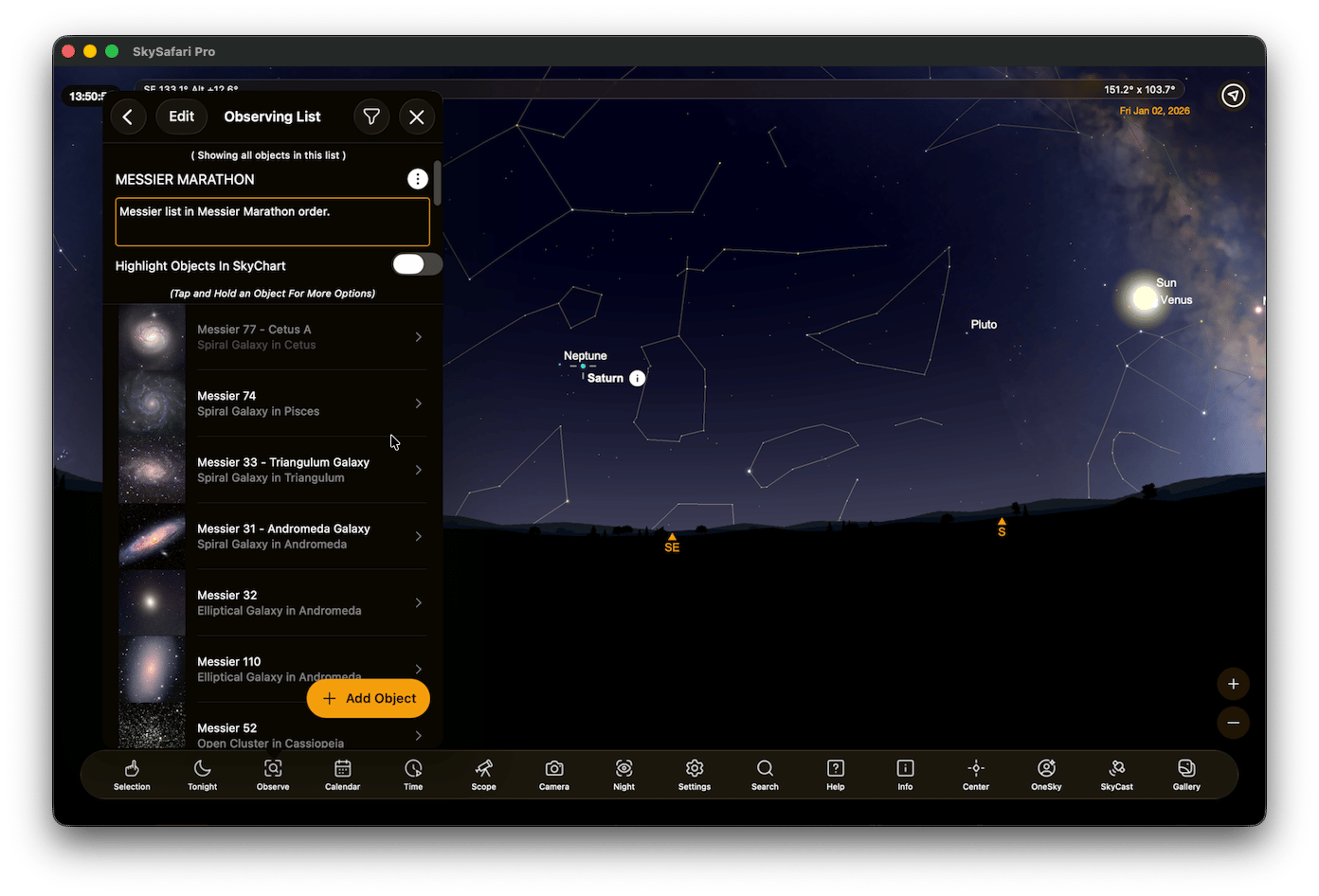
Observing Lists HelpObserving lists keep track of objects you wish to observe, and record a log of your observations. Items in the list can be edited to show the time and date you observed the object, and let you enter notes about your observations of the object. You can share observing lists with friends by email, or send them to yourself for safekeeping.You create and access observing lists by selecting “Observing Lists” from the Observe button in the Toolbar.
By default, SkySafari comes with a single, empty observing list called “My Favorites”. To create additional observing lists, tap the Create List button at the bottom of the Observing Lists view. You can import an existing list from the online Observing List Repository or select Create New List to create a new “Untitled list”. Give your new list a title and description by tapping the Edit button; you can then add objects to the list.
You can add an object to an observing list, log a new observation of an object, or show your existing observations of the object, by selecting any object in the sky chart and then using a tap & hold gesture over the object to bring up the Selection menu. This gives you three options:Add to Observing List (icon is a stack with a plus) - lets you add the object to the observing list.Create New Observation (icon is an eye) - lets you log a new observation of the object.Show Observations (icon is a log sheet) - shows all of your existing observations of the object.Choose the Add to Observing List icon from the selection menu options. If you have more than one observing list, SkySafari lets you choose which list to add the object to. If you have only a single list, this choice is skipped.
You can rearrange and delete items in an observing list. Here’s how.On iOS, tap the Edit button at the top of the screen. Then tap and drag the “grip” icon on the right side of the list item to move it around the screen. Tap and drag the - (minus) icon on the left side of the item to delete it. Tap the End Edit button at the top of the screen when you’re finished.On Android, tap the Edit link at the top of the screen. Up/down arrows and a trash can appear at the bottom of the screen. Then tap the observing list item you want to move or delete. Use the up/down arrows to move the item in the list, or tap the trash can to delete it. When finished, tap the End Edit link at the top of the screen.Using the controls near the top of the screen you can filter the list to show (1) all objects, (2) those with observations attached to this list or (3) objects that have yet to be observed.You can sort all objects in the list by tapping the Sort & Filter icon on the top right of the screen. Then choose a property to sort on. For example, to sort objects in the list by magnitude (brightest to faintest), choose “Visual Magnitude” from this menu.To visually show where objects in the selected list appear in the sky chart, tap the Highlight Objects switch above the list. When an observing list is highlighted, a small list icon appears at the bottom of the sky chart above the toolbar. Click this icon to quickly return to the highlighted list.To delete an entire observing list, use the same techniques to edit the list of observing lists.
Tap an observing list in the Observing List view to see the objects it contains. Tapping and holding (long-press) an object in the list provides a choice of:Showing the Object Info for that object
Creating/Editing your observations of the object
Centering the object in the sky chart
When editing an observation of an object, you can enter the following information about your observation:Session - a period devoted to a particular observing time. A Session can be associated with multiple observations. For example, you might want to organize a single night’s object observations into a Session. New Sessions can be created in the Sessions view by tapping Observe on the Toolbar and selecting Sessions.Date and Time - “started at” and “ended at” times when you actually observed the object.Observing List - the list the observation is associated with. Each observation can only be associated with one observing list. If the chosen observing list doesn’t contain the object you are creating an observation for, you will be asked if you want to add it to the list.Seeing - a measure of how steady the air was when you observed the object using the Antoniadi scale. Use the slider to choose from I (Perfect seeing) to V (very bad seeing).Limiting Magnitude - a measure of the faintest stars (apparent magnitude) that can be detected with the unaided eye near the zenith. Use the slider to choose from magnitude 0 to 8.Sky Quality - a measure of the brightness of the sky in magnitudes per square arcsecond (Mpsa). Use the slider to choose from a Mpsa of 17 (sky is brilliantly lit) to 23 (excellent dark skies).Comments - any particular notes about the object that you want to save. For example, “Jupiter’s Great Red Spot was unusually red tonight.”Equipment - the combination of equipment you used to observe the object (telescope, eyepiece, binoculars, etc.) You can enter the equipment by tapping the “Choose Equipment” button and selecting from SkySafari’s equipment list. See the Equipment Help for information on how to add equipment to the list.You can go back and edit your observations of an object at any time.
You can batch download a Deep Sky Survey (DSS) image for all the objects in an observing list.Tap the More button (resembles 3 dots) above the objects in an observing list. In the menu that opens, there is a Download DDS Images For List button. Tap this button to download a DSS image for all the objects in your list.
Above the objects in an observing list, tap the More button. Then select Email List (iOS) or Share (Android) to create an email message with the observing list as an attachment. Enter the recipient’s email address in the “To:” field, and edit the message body as desired. Tap Send to send the observing list to the recipient.When the recipient receives the email on their mobile device, they can import the attached observing list into their copy of SkySafari. To do this, the recipient should touch the observing list attachment until a view appears with the option to open in SkySafari. Selecting SkySafari imports the observing list into the recipient’s copy of SkySafari.You can email your observing lists with or without observations. This lets you send a “clean” copy of an observing list to someone else.